Embedding a drag-and-drop scheduler in a Business Central page
By Fred Morin ·
Business version (in French): Un planificateur visuel dans Business Central : quand l’écran standard ne suffit pas
Business Central is very good at many things. A visual, drag-and-drop scheduler is not one of them. There's no screen in the base application where you can see your people and equipment side by side, grab an appointment with the mouse, and drop it on another resource or another hour.
On a vertical extension I built for a veterinary practice, that screen was the whole point. The practice had to dispatch vets, assistants and equipment to appointments all day long, and doing that from list pages and card pages just doesn't work. So I built one. It ran inside a Business Central page, looked native, and the users never had to leave BC to plan their day.
This post explains how it was put together. None of it is specific to veterinary work: the same approach fits any business that dispatches resources, from field service to construction to equipment rental.
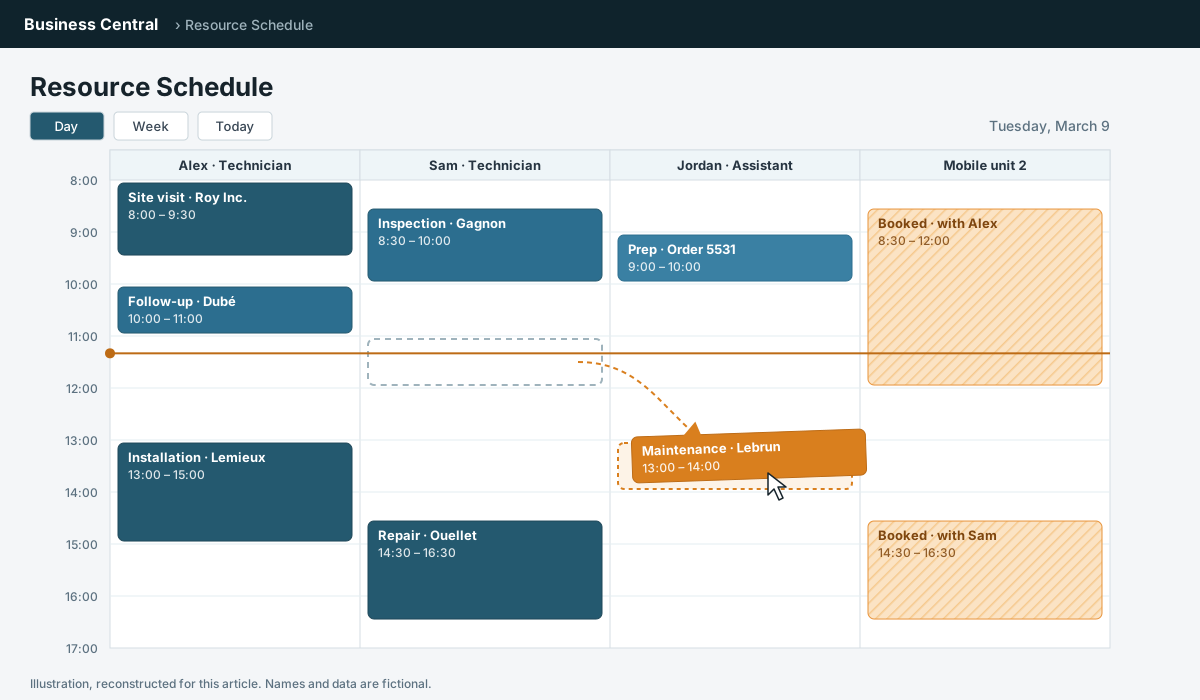
Illustration, reconstructed for this article. The original was client work, so no screenshots.
25 seconds: a standalone demo I rebuilt to show the idea. It is not the client system: this one keeps the board inside the extension, where the original used a separate web app.
What the scheduler did
A daily and weekly calendar, with resources across the top (vets, assistants, equipment) and hours down the side. Users could:
- drag an appointment to a new time,
- drop it on another resource,
- delete it,
all visually, with the mouse. Every change was synced back to Business Central.
The architecture, in four pieces
1. The extension: tables, pages and custom fields
The AL side was a regular extension. New tables for the scheduling data, new pages to work with them, and custom fields added to existing standard tables with table extensions, so the scheduling information lived right next to the records it belonged to. Each booking was linked to a sales order line with a resource on it, which kept the scheduled work and the billable line connected.
Nothing exotic here, but it matters: the scheduler didn't have its own copy of "who is a resource" or "what is an appointment". Business Central stayed the system of record for that business data.
2. Custom API pages for the new fields
The scheduler needed to read and write those custom fields. The standard Business Central APIs don't know about fields your extension adds, so I exposed them through my own API pages. A simplified example, not the original code:
page 50101 "Schedule Entries API"
{
    PageType = API;
    APIPublisher = 'contoso';
    APIGroup = 'scheduling';
    APIVersion = 'v1.0';
    EntityName = 'scheduleEntry';
    EntitySetName = 'scheduleEntries';
    SourceTable = "Schedule Entry";
    DelayedInsert = true;
    ODataKeyFields = SystemId;

    layout
    {
        area(Content)
        {
            repeater(Records)
            {
                field(id; Rec.SystemId) { Editable = false; }
                field(resourceNo; Rec."Resource No.") { }
                field(startDateTime; Rec."Start DateTime") { }
                field(endDateTime; Rec."End DateTime") { }
            }
        }
    }
}
That page shows up under your own publisher, group and version in the API URL, next to the standard endpoints:
https://api.businesscentral.dynamics.com/v2.0/{tenant}/{environment}/api/contoso/scheduling/v1.0/companies({companyId})/scheduleEntries
A drag and drop in the scheduler became a PATCH on one schedule entry. A new booking was a POST, a deletion a DELETE.
3. The scheduler itself: a web app on Azure
The scheduler was a Blazor web application hosted on Azure. It was one piece of a larger system that also included a Xamarin field-service app, the one the vets used on the road. The Azure side used Azure SQL and Azure Storage for temporary, in-between data: the sync with the mobile app, the working copy of the schedule, and so on. Business Central remained the system of record, and everything reached it through those APIs.
Keeping the scheduler outside Business Central was deliberate. A rich, interactive UI like this is much easier to build as a proper web application than inside the constraints of a BC page. And because the only contract between the two sides was the API, each could evolve on its own.
4. Putting it inside a Business Central page
This is what made it feel native. Business Central lets an extension host web content inside a page through a control add-in, a small JavaScript component that runs in the page. Mine loaded the scheduler's URL and filled the available space, so to the user it was just another page in Business Central.
Again simplified. The control add-in:
controladdin "Scheduler Host"
{
    StartupScript = 'scripts/startup.js';
    Scripts = 'scripts/host.js';
    RequestedHeight = 700;
    MinimumHeight = 400;
    VerticalStretch = true;
    HorizontalStretch = true;

    event ControlReady();
    procedure LoadUrl(Url: Text);
}
Its JavaScript, which creates a frame inside the add-in's container:
// startup.js
Microsoft.Dynamics.NAV.InvokeExtensibilityMethod('ControlReady', []);

// host.js
function LoadUrl(url) {
  var frame = document.createElement('iframe');
  frame.src = url;
  frame.style.border = 'none';
  frame.style.width = '100%';
  frame.style.height = '100%';
  document.getElementById('controlAddIn').appendChild(frame);
}
And the page that hosts it:
page 50100 "Resource Scheduler"
{
    PageType = Card;
    ApplicationArea = All;
    UsageCategory = Tasks;
    Caption = 'Resource Scheduler';

    layout
    {
        area(Content)
        {
            usercontrol(Scheduler; "Scheduler Host")
            {
                ApplicationArea = All;

                trigger ControlReady()
                var
                    Setup: Record "Scheduler Setup";
                begin
                    if not Setup.Get() or not Setup.Enabled then
                        exit;
                    CurrPage.Scheduler.LoadUrl(Setup."Scheduler URL");
                end;
            }
        }
    }
}
A setup page: an on switch and a URL
The scheduler's address wasn't hardcoded. The extension had its own settings page with two things: a toggle to turn the scheduler on, and the URL of the scheduler app.
table 50100 "Scheduler Setup"
{
    fields
    {
        field(1; "Primary Key"; Code[10]) { }
        field(2; Enabled; Boolean) { Caption = 'Enabled'; }
        field(3; "Scheduler URL"; Text[250])
        {
            Caption = 'Scheduler URL';
            ExtendedDatatype = URL;
        }
    }
    keys
    {
        key(PK; "Primary Key") { Clustered = true; }
    }
}
It's a small thing, but it made the whole setup much easier to live with. Pointing a sandbox at a test instance of the scheduler, switching the feature off for a company that didn't use it, or moving the app to a new address: all of that was a settings change, not a new version of the extension.
How it turned out
It worked flawlessly. Honestly, I was a little surprised it worked as well as it did: the scheduler looked and behaved like a native part of Business Central, and the users treated it that way.
If you're building something like this today
A few things worth thinking about up front. These are general advice, not a list of problems I hit:
- Authentication. Plan how the web app authenticates to Business Central's API (a Microsoft Entra app registration with service-to-service access is the usual route for Business Central online), and how the user inside the frame is identified.
- Framing rules. The web app has to allow being displayed inside Business Central's page. Check its
Content-Security-Policy(frame-ancestors) andX-Frame-Optionsheaders. - Context. Decide what the add-in passes to the app: the company, the user, maybe the record the page was opened from. Query-string parameters on the URL are the simplest route.
- One source of truth. Be explicit about which data lives in Business Central and which lives in the app's own database, so the two never disagree.
- Sizing.
VerticalStretchandHorizontalStretchlet the add-in fill the page. Without them, a scheduler squeezed into a small box loses most of its value.
Not just for vets
The screen was built for a veterinary practice, but nothing in it is veterinary: resources across, hours down, appointments you can move with the mouse. Any business that sends people and equipment out to jobs has the same need, and the same gap in Business Central.
If you have a Business Central screen your team works around instead of with, let's talk.