Why Parent scope fails on Business Central virtual tables in Power Pages (and what works)
By Fred Morin ·
Also in French: Pourquoi l’étendue Parent échoue sur les tables virtuelles Business Central dans Power Pages (et ce qui fonctionne)
Tested on 2 October 2026 with Business Central 28.5 (sandbox) and a Power Pages site on the enhanced data model. Power Pages on Business Central virtual tables is still a preview feature, so this can change.
A customer portal on Business Central sounds simple. A customer signs in and sees their own orders and invoices. Nobody else's.
The first half is easy now: Power Pages can read Business Central live, through Dataverse virtual tables. The second half, "nobody else's", is where it went wrong for me.
I built a small portal to try it. The security design that looked obvious did not work. This post gives the error, the reason, the setup that does work, and one limit you should know before you promise anything to a client.
The short version, if you're in a hurry
- A Parent-scope permission chain from Contact to BC Customer to Sales Orders fails at runtime.
- What works is a synthetic relation between Contact and each BC document table, with a Contact-scope table permission on top.
- The cost: one contact per BC customer.
The setup
- The BC tables Customer, Sales Order and Sales Invoice are made visible as virtual tables (
dyn365bc_customer_v2_0,dyn365bc_salesorder_v2_0,dyn365bc_salesinvoice_v2_0). - The Dataverse Contact table has a lookup to the BC Customer virtual table. Mine is called
fm_bccustomer. - Each portal user is a contact, linked to one BC customer through that lookup.
The goal: a signed-in contact sees the orders and invoices of their customer and nobody else's, with no Global scope anywhere.
What I tried first: a chain of Parent permissions
The virtual tables come with relationships from Sales Order and Sales Invoice to Customer. So this chain looked natural:
| Table permission | Access type | Relationship |
|---|---|---|
| Contact | Self | |
| BC Customer | Parent (of Contact) | Contact's lookup to BC Customer |
| BC Sales Order | Parent (of BC Customer) | dyn365bc_customer_salesorders |
| BC Sales Invoice | Parent (of BC Customer) | dyn365bc_customer_salesinvoices |
Power Pages accepted all four permissions. The lists did not load. Both showed this instead:
'dyn365bc_customer_v2_0' entity doesn't contain attribute with Name = 'contactid'
and NameMapping = 'Logical' (look up attribute by name is case-sensitive).
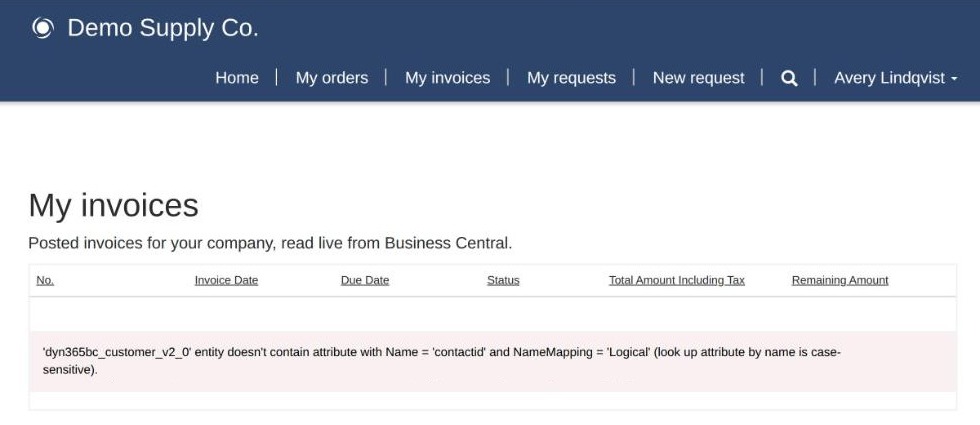
The invoice list with the Parent-scope chain in place. The column headers load, the rows do not.
Why it fails
Read the message literally. The portal is looking for a contactid column on the BC Customer table. It built the join as if Customer held a lookup to Contact.
In this model the lookup points the other way: Contact holds the lookup to Customer. The query the portal generates is not valid for that direction, so every list that depends on the chain fails.
I did not test whether the same direction fails on ordinary Dataverse tables. I can only say it fails here.
Two related dead ends, so you can skip them:
- Contact scope directly on BC Customer is not possible. Contact scope needs a relationship in which the secured table points at Contact. BC Customer does not point at Contact.
- A synthetic relation onto the Customer table itself is rejected:
Type 'lookup' of referenced attribute 'fm_bccustomer' and type 'primarykey' of referencing attribute 'dyn365bc_customer_v2_0id' ... must match.
What works: a synthetic relation and Contact scope
This is the method in Microsoft's own guide for the feature. A synthetic relation tells Dataverse to treat a column on a native table and a column on a BC virtual table as a relationship, even though no real one exists.
1. Add an alternate key on Contact
On the Contact table, add a key that contains only the BC Customer lookup.
| Setting | Value |
|---|---|
| Table | Contact |
| Key name | fm_bccustomeronlykey (yours will have your prefix) |
| Columns | fm_bccustomer |
Wait until the key's index status is Active. Mine took about a minute and a half.
2. Create one synthetic relation per document table
In the Business Central Configuration app, open Table Relations and create a row. For sales orders:
| Field | Value |
|---|---|
| Relation name | fm_contact2salesorder |
| Native table | contact |
| Native table key | fm_bccustomeronlykey |
| Virtual table | dyn365bc_salesorder_v2_0 |
| Native column | fm_bccustomer |
| Virtual column | dyn365bc_customer_customerid |
Do the same for dyn365bc_salesinvoice_v2_0.
I created them through the Dataverse Web API instead of the app. The rows live in the dyn365bc_syntheticrelations table:
POST /api/data/v9.2/dyn365bc_syntheticrelations
Content-Type: application/json

{
  "name": "fm_contact2salesorder",
  "dyn365bc_nativeentity": "contact",
  "dyn365bc_nativeentitykey": "fm_bccustomeronlykey",
  "dyn365bc_virtualentity": "dyn365bc_salesorder_v2_0",
  "dyn365bc_referencedattribname1": "fm_bccustomer",
  "dyn365bc_referencingattribname1": "dyn365bc_customer_customerid"
}
Dataverse then shows a new relationship on the virtual table. Note the prefix it adds: dyn365bc_fm_contact2salesorder. That is the name the table permission needs.
3. Set the table permissions to Contact scope
| Table permission | Access type | Relationship | Privileges |
|---|---|---|---|
| BC Sales Order | Contact | dyn365bc_fm_contact2salesorder |
Read |
| BC Sales Invoice | Contact | dyn365bc_fm_contact2salesinvoice |
Read |
Assign both to the Authenticated Users web role. Restart the site or wait for its cache to refresh.
The result
I tested with two contacts, each linked to a different CRONUS customer:
- Contact A saw exactly the three open orders of their customer, and that customer's posted invoices.
- Contact B saw a different set of three orders and their own invoices.
- Neither saw the other's rows.
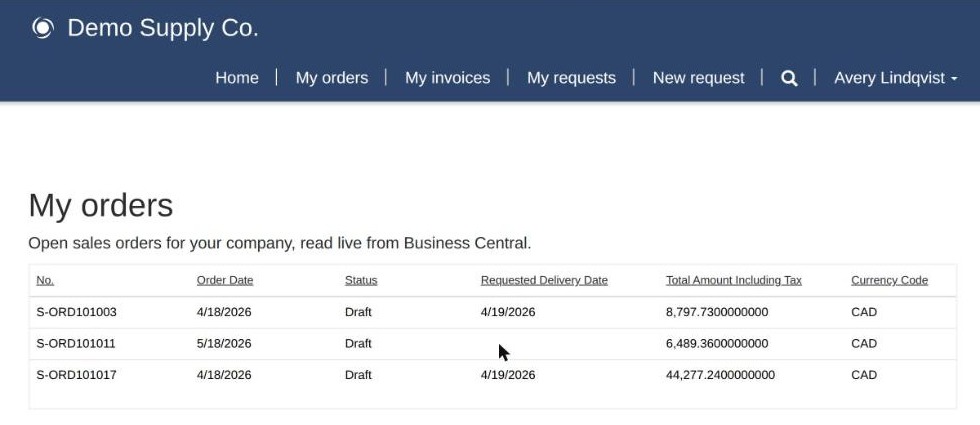
Contact A: the three open orders of their customer.
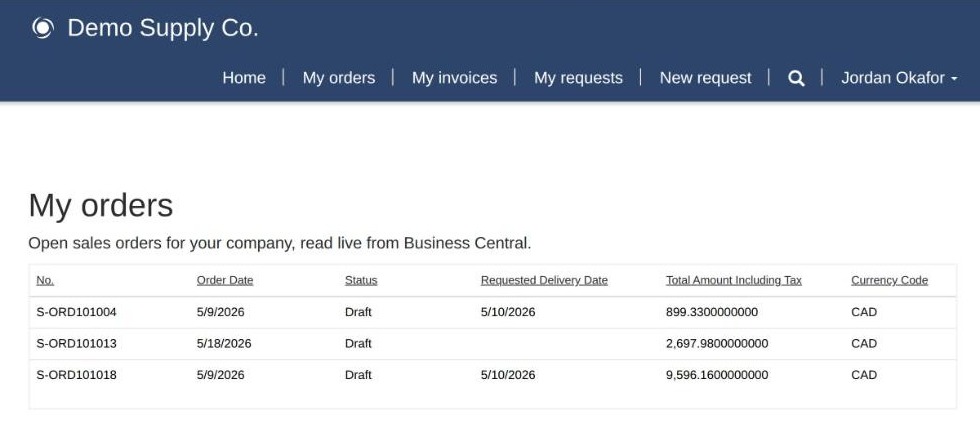
Contact B, same page, same permissions: a different three orders.
The invoice list also paged correctly: eight pages for one contact, five for the other, matching the invoice counts in Business Central.
The catch: one contact per BC customer
The first key I tried had two columns, the customer lookup and the email address, so that several contacts could belong to the same customer. The synthetic relation refused it:
Every attribute of entitykey 'fm_bccustomerkey' of referenced entity 'contact' must be mapped
to an attribute of the same type on the referencing entity 'dyn365bc_salesorder_v2_0'
Every column in the key has to be mapped to a column on the virtual table. A sales order has no column that holds the portal user's email. So the key can only contain the customer lookup.
Alternate keys are unique. Two contacts cannot hold the same customer in that lookup.
For a demo that is fine. For a real B2B portal, where a customer usually has several users, it is a design problem to solve before you start. I have not built an alternative, so I will not recommend one here.
Two more things that will save you time
- The BC Customer table ends up with no usable scoped permission. If no page reads it, give it no read access.
- External portal users have no Business Central licence. BC runs their queries as a built-in Entra application called Power Pages Authenticated External Users. Microsoft's guide has you enable it in BC (Microsoft Entra Applications) and give it permission sets. I did that before my first test, so I can't show you what the portal does without it.
If you're building something like this today
| Approach | Result |
|---|---|
| Parent scope: Contact, then BC Customer, then orders and invoices | Fails with the contactid error |
| Contact scope on BC Customer | Not possible, no relationship toward Contact |
| Synthetic relation onto BC Customer | Rejected, type mismatch |
| Synthetic relation Contact to Sales Order / Sales Invoice, with Contact scope | Works |
If you hit the contactid error on a Business Central virtual table, stop adjusting the Parent permissions. Create the key and the synthetic relations, and switch the permissions to Contact scope. And count how many portal users each customer needs before you choose this design.
If you want your customers to see their own Business Central data without a licence each, let's talk.