A Business Central customer portal with Power Pages: live orders and invoices, no data copied
By Fred Morin ·
Also in French: Un portail client Business Central avec Power Pages : commandes et factures en direct, sans copier les données
Tested on 2 October 2026 with Business Central 28.5 (sandbox, CRONUS demo data) and a Power Pages site on the enhanced data model. Power Pages on Business Central virtual tables is still a preview feature, so this can change.
Your customers phone to ask where their order is. Someone opens Business Central, reads the answer off the screen, and hangs up. Then the next customer calls about an invoice.
The data is already there. The customer just can't see it.
I wanted to know how far the Microsoft stack gets you today without writing an integration. So I built a small portal: a customer signs in and sees their own open sales orders and posted invoices, read live from Business Central. This is how it fits together, and where it resisted.
What the portal does
A signed-in customer contact can:
- see their company's open sales orders
- see their company's posted invoices
- send a service request, follow it, and cancel it
The orders and invoices are not copied anywhere. Each page view reads Business Central at that moment. The service requests are the only data stored outside BC, in a Dataverse table.
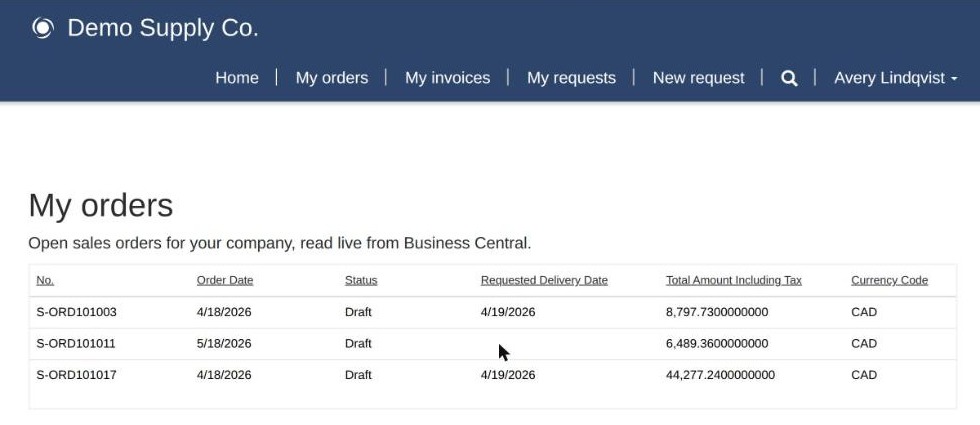
The orders page as a signed-in customer contact sees it. The rows come from Business Central at the moment the page loads.
The architecture, in four pieces
1. Virtual tables: Business Central seen from Dataverse
A virtual table is a Dataverse table with nothing in it. It is a window onto another system. When something queries it, Dataverse calls Business Central's API and returns the rows.
Microsoft ships this as the Business Central Virtual Table app. Once it is installed and connected, a BC table such as Customer or Sales Order shows up in Dataverse like any other table, and Power Pages can list it.
2. A link from the portal user to a BC customer
Power Pages sign-in is tied to the Dataverse Contact table. Every portal user is a contact.
So the Contact table gets one extra column: a lookup to the BC Customer virtual table. That single field says which company a portal user belongs to. Everything about security hangs on it.
3. The site: lists on the virtual tables
Two list pages, one on Sales Order and one on Sales Invoice, each showing a Dataverse view. No custom code for these.
4. Table permissions: only your own company's rows
This is the part that did not go as planned. It has its own post: why Parent scope fails on Business Central virtual tables, and what works.
The short answer is a synthetic relation between Contact and each document table, with Contact-scope permissions.
The setup, step by step
Get an environment that can host a site
My tenant had Business Central and nothing else. Two surprises before I had built anything:
- Without a Power Apps licence of some kind, you cannot create a Dataverse environment. Signing in to Power Pages and accepting the Developer Plan fixed that.
- The default environment cannot host a site. You need a separate one, with Dataverse.
Install the virtual table app
You can get it from AppSource. I installed it with the Power Platform CLI:
pac application install --environment <environment-id> --application-name MicrosoftBusinessCentralVEAnchor
On a brand-new environment the first attempt failed with Unable to load plug-in assembly. I waited two minutes, ran the same command, and it succeeded.
Connect Business Central to Dataverse
In Business Central, run the assisted setup Set up a connection to Dataverse:
- Turn on Enable virtual tables and events.
- Accept the terms.
- Enter the Dataverse environment URL and sign in as an administrator.
- When the wizard asks about an ownership model, turn on Complete setup without synchronization.
Step 4 matters. The wizard leans toward the classic integration, which copies data into Dataverse. If all you want is virtual tables, that toggle is how you say so.
Enable the app user for portal visitors
Your customers have no Business Central licence. Business Central runs their queries as a built-in Entra application called Power Pages Authenticated External Users.
In BC, open Microsoft Entra Applications, open that card, set State to Enabled, and assign permission sets. I used LOGIN, D365 BASIC and D365 READ. That is broader than this portal needs. On a real project I would write a permission set limited to the tables I expose.
There is a second application for anonymous visitors. I left it disabled: nobody should read BC data without signing in.
Make the BC tables visible
Installing the app does not create the virtual tables. You choose which ones you want.
Microsoft's guide does this in the Business Central Configuration app: open Available Tables, pick a table, tick Visible. I needed four: Customer, Sales Order, Sales Order Line and Sales Invoice.
I did it through the Dataverse Web API instead, and hit an error worth knowing. A plain PATCH on the catalog row returned 0x80040216 An unexpected error occurred. Adding one header fixed it:
PATCH /api/data/v9.2/dyn365bc_businesscentralentities(<row-id>)
If-Match: *
Content-Type: application/json

{ "dyn365bc_hasbeengenerated": true }
Without If-Match: *, the Web API treats the call as an upsert, and this table refuses that.
The tables appear with names like dyn365bc_salesorder_v2_0. Query them and you get live BC rows.
Link Contact to the BC customer
On the Contact table, add a lookup column to the Customer virtual table. Dataverse accepted a lookup from a native table to a virtual one with no complaint.
Then create your portal contacts and fill in that field for each one.
Create the site, and check its data model
Microsoft's guide asks for the enhanced data model. My new site came up on the standard one. I migrated it before building anything on it:
pac pages migrate-datamodel --webSiteId <website-id> --mode all
pac pages migrate-datamodel --webSiteId <website-id> --updateDataModelVersion --portalId <portal-id>
Check which model you have before you start adding pages.
Build the views and the lists
The views that come with the virtual tables show one column, the document number. I created my own, with dates, status and totals.
Two things about the data surprised me:
- "Sales Invoice" is not only posted invoices. The table is BC's
salesInvoicesAPI, which also returns drafts. My view filters on status so that customers only see Open, Paid, Canceled and Corrective. - Sales order lines cannot be listed on their own. A query without a filter returns
You must specify an Id or a Document Id to get the lines. You can only read lines for a given order.
With the views in place, each page is a standard Power Pages list pointing at a view.
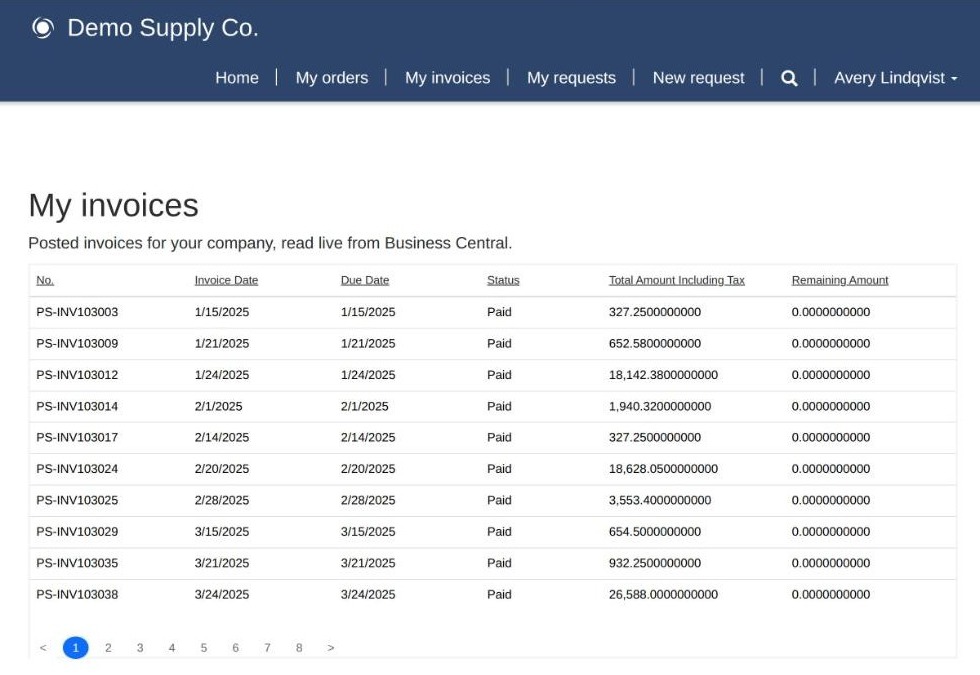
The invoice list, using my own view: dates, status and amounts, drafts filtered out, ten rows per page.
Secure it
Table permissions with Contact scope, through a synthetic relation. The second post has the steps and the error you will meet if you try the obvious design first.
Add page permissions as well, so that anonymous visitors are sent to the sign-in page instead of seeing an empty list. Page permissions hide pages. Table permissions protect data. You need both.
How it turned out
I tested with two contacts, each linked to a different CRONUS customer.
- Each saw exactly their own company's three open orders.
- Each saw their own company's posted invoices, paged ten at a time.
- Neither saw anything belonging to the other.
- Signed out, every data page redirected to sign-in.
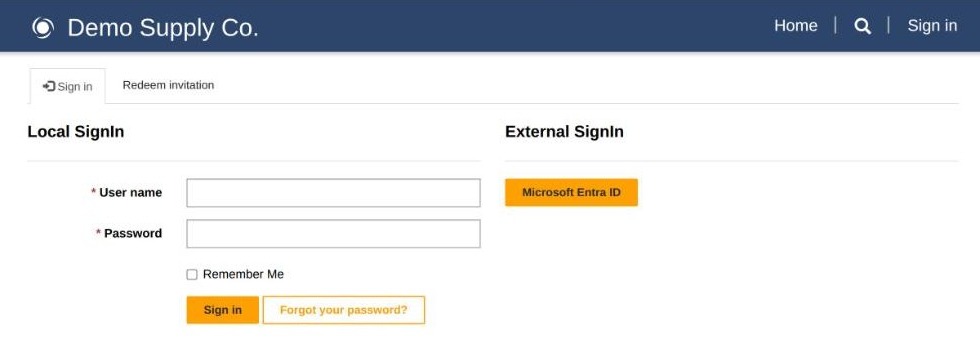
Signed out, the orders page sends you to sign-in.
The lists are not instant. Every view is a live call to Business Central, and the loading spinner shows it.
One query quirk is worth knowing. In FetchXML against these tables, top="10" returned a single row. Paging with count and page returned the right rows. The lists use paging, so they are fine. If you write your own FetchXML in Liquid, use count and page too.
If you're building something like this today
- Remember it is a preview. Microsoft says so on the feature's own page. Fine for a pilot. Read the terms before you put a customer on it.
- Decide early whether live data is what you want. Virtual tables mean current figures and nothing to synchronise. They also mean every page waits on Business Central, and the portal is down when BC is.
- Count the users per customer. The security method that works allows one contact per BC customer. The second post explains why.
- Keep the customer link away from the user. That one lookup decides whose data a person sees. It should not be on any form a portal user can edit.
- Script what you can. Most of this setup can be done from the Power Platform CLI and the Dataverse Web API, which makes it repeatable in the next environment.
Not just for orders and invoices
The same pattern applies to anything BC exposes through its API: shipments, quotes, items, vendor documents. The virtual table app lists well over a hundred tables.
If your team spends its day reading Business Central out loud to customers, let's talk.